A Place for Sharing and Inspiration

Total Pageviews

Showing posts with label Rich Text Editor. Show all posts

Saturday, October 9, 2021

Tip - How to change Default Font style and size for email form in Rich text editor control in Dynamics CRM


Tip - How to change Default Font style and size for email form in Rich text editor control in Dynamics CRM

Scenario:

Sometimes, we would come across a business requirement to change the default font for email forms or some other forms. Unfortunately, there is no such out of the box feature in Dynamics 365 (CRM) for users to utilize in order to fulfill this requirement at the moment; however, we can still use JavaScript to achieve it. below is how.

First of all, you can refer to below link from Microsoft for the sample code:

https://docs.microsoft.com/en-us/powerapps/maker/model-driven-apps/rich-text-editor-control#rich-text-editor-properties

https://docs.microsoft.com/en-us/powerapps/maker/model-driven-apps/rich-text-editor-control#use-the-webresource-for-organization-wide-changes

Two types of configurations from the sample codes

There are two types of configurations: the defaultSupportedProps section, and individual configuration settings that provide various functionality.

today, we will use defaultSupportedProps to configure the default font style and size for one of the email forms. Below are the key attributes of rich text editor control that we will update and configure:

  • font_defaultLabel

  • fontSize_defaultLabel

  • stickyStyle

defaultSupportedProps

You can configure all of the CKEditor-supported properties under this property. A few of the commonly used and custom configurations are described below. For complete documentation about CKEditor configurations, see CKEditor.config.

AttributeDescriptionDefault value
font_defaultLabelSets the default label that is displayed in the toolbar for font style. The default is Segoe UI."font_defaultLabel": "Segoe UI"
fontSize_defaultLabelSets the default label that is displayed in the toolbar for font size. The default is 9."fontSize_defaultLabel": "9"
stickyStyleSets the actual default font size and style. Additionally, you can include any other CSS properties you'd like to set as part of your default styling. The stickyStyle plugin creates a wrapper around your content using the element specified by "stickyStyles_defaultTag", which is initially configured as "div"."stickyStyle": { "font-size": "9pt", "font-family": "'Segoe UI','Helvetica Neue',sans-serif" }

Font option available in Dynamics 365

Below are the font options that are available in Dynamics 365 by default.

"font_names": "Angsana New/'Angsana New', 'Leelawadee UI', Sathu, serif;Arial/Arial, Helvetica, sans-serif;Arial Black/'Arial Black', Arial, sans-serif;Calibri Light/'Calibri Light', 'Helvetica Light', sans-serif;Calibri/Calibri, Helvetica, sans-serif;Cambria/Cambria, Georgia, serif;Candara/Candara, Optima, sans-serif;Century Gothic/'Century Gothic', sans-serif;Comic Sans MS/'Comic Sans MS';Consolas/Consolas, Courier, monospace;Constantia/Constantia, 'Hoefler Text', serif;Corbel/Corbel, Skia, sans-serif;Cordia New/'Cordia New', 'Leelawadee UI', Silom, sans-serif;Courier New/'Courier New';DaunPenh/DaunPenh, 'Leelawadee UI', 'Khmer MN', sans-serif;Franklin Gothic Book/'Franklin Gothic Book', 'Avenir Next Condensed', sans-serif;Franklin Gothic Demi/'Franklin Gothic Demi', 'Avenir Next Condensed Demi Bold', sans-serif;Franklin Gothic Medium/'Franklin Gothic Medium', 'Avenir Next Condensed Medium', sans-serif;Garamond/Garamond, Georgia, serif;Gautami/Gautami, 'Nirmala UI', 'Telugu MN', sans-serif;Georgia/Georgia, serif;Impact/Impact, Charcoal, sans-serif;Iskoola Pota/'Iskoola Pota', 'Nirmala UI', 'Sinhala MN', sans-serif;Kalinga/Kalinga, 'Nirmala UI', 'Oriya MN', sans-serif;Kartika/Kartika, 'Nirmala UI', 'Malayalam MN', sans-serif;Latha/Latha, 'Nirmala UI', 'Tamil MN', sans-serif;Leelawadee UI/'Leelawadee UI', Thonburi, sans-serif;Lucida Console/'Lucida Console', Monaco, monospace;Lucida Handwriting/'Lucida Handwriting', 'Apple Chancery', cursive;Lucida Sans Unicode/'Lucida Sans Unicode';Mangal/Mangal, 'Nirmala UI', 'Devanagari Sangam MN', sans-serif;Nirmala UI/'Nirmala UI', sans-serif;Nyala/Nyala, Kefa, sans-serif;Palatino Linotype/'Palatino Linotype', 'Book Antiqua', Palatino, serif;Raavi/Raavi, 'Nirmala UI', 'Gurmukhi MN', sans-serif;Segoe UI/'Segoe UI', 'Helvetica Neue', sans-serif;Shruti/Shruti, 'Nirmala UI', 'Gujarati Sangam MN', sans-serif;Sitka Heading/'Sitka Heading', Cochin, serif;Sitka Text/'Sitka Text', Cochin, serif;Sylfaen/Sylfaen, Mshtakan, Menlo, serif;TW Cen MT/'TW Cen MT', 'Century Gothic', sans-serif;Tahoma/Tahoma, Geneva, sans-serif;Times New Roman/'Times New Roman', Times, serif;Times/Times, 'Times New Roman', serif;Trebuchet MS/'Trebuchet MS';Tunga/Tunga, 'Nirmala UI', 'Kannada MN', sans-serif;Verdana/Verdana, Geneva, sans-serif;Vrinda/Vrinda, 'Nirmala UI', 'Bangla MN', sans-serif;メイリオ/Meiryo, メイリオ, 'Hiragino Sans', sans-serif;仿宋/FangSong, 仿宋, STFangsong, serif;微軟正黑體/'Microsoft JhengHei', 微軟正黑體, 'Apple LiGothic', sans-serif;微软雅黑/'Microsoft YaHei', 微软雅黑, STHeiti, sans-serif;新宋体/NSimSun, 新宋体, SimSun, 宋体, SimSun-ExtB, 宋体-ExtB, STSong, serif;新細明體/PMingLiU, 新細明體, PMingLiU-ExtB, 新細明體-ExtB, 'Apple LiSung', serif;楷体/KaiTi, 楷体, STKaiti, serif;標楷體/DFKai-SB, 標楷體, BiauKai, serif;游ゴシック/'Yu Gothic', 游ゴシック, YuGothic, sans-serif;游明朝/'Yu Mincho', 游明朝, YuMincho, serif;隶书/SimLi, 隶书, 'Baoli SC', serif;黑体/SimHei, 黑体, STHeiti, sans-serif;굴림/Gulim, 굴림, 'Nanum Gothic', sans-serif;궁서/Gungsuh, 궁서, GungSeo, serif;돋움/Dotum, 돋움, AppleGothic, sans-serif;맑은 고딕/'Malgun Gothic', '맑은 고딕', AppleGothic, sans-serif;바탕/Batang, 바탕, AppleMyungjo, serif;바탕체/BatangChe, 바탕체, AppleMyungjo, serif;MS Pゴシック/'MS PGothic', 'MS Pゴシック', 'MS Gothic', 'MS ゴシック', 'Hiragino Kaku Gothic ProN', sans-serif;MS P明朝/'MS PMincho', 'MS P明朝', 'MS Mincho', 'MS 明朝', 'Hiragino Mincho ProN', serif",

Which Font should be selected

Some of us may have no idea at all for which font we should pick from above code snippet. If that's the case, you may refer to below link for some reference and knowledge about Font definitions.

https://drmarkwomack.com/a-writing-handbook/style/typography/

Note:

there is also another workaround to find out the actual default font size and style as shown below:

image-20211006225758432

open the Developer Tools in Edge or chrome browsers, and hover over to those random text, then the Font information will pop up right away, which will give the idea which font you should go with.
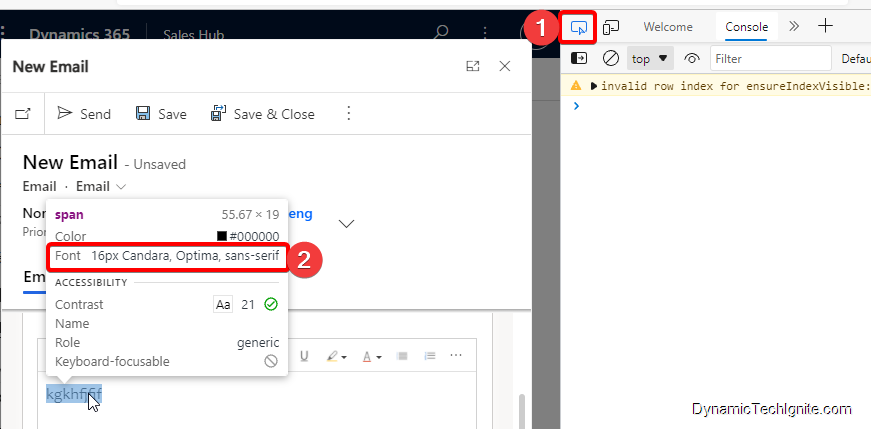
image-20211006225932925

How to update the sample code data

Sets the actual default font size and style

Sets the actual default font size and style as below script (for the actual text that you will enter in the text box)

        "stickyStyle": {

           "font-size": "12pt",

           "font-family": "Candara,Optima,sans-serif"

      },

Sets the default label for Font style and size in toolbar

in terms of the labels indicated by below screen shot, you will have to use different code as mentioned earlier.

image-20211006231007266

default label for Font style

"font_defaultLabel": "Candara"

default label for Font size

"fontSize_defaultLabel": "12"

Create a web resource through the legacy classic interface
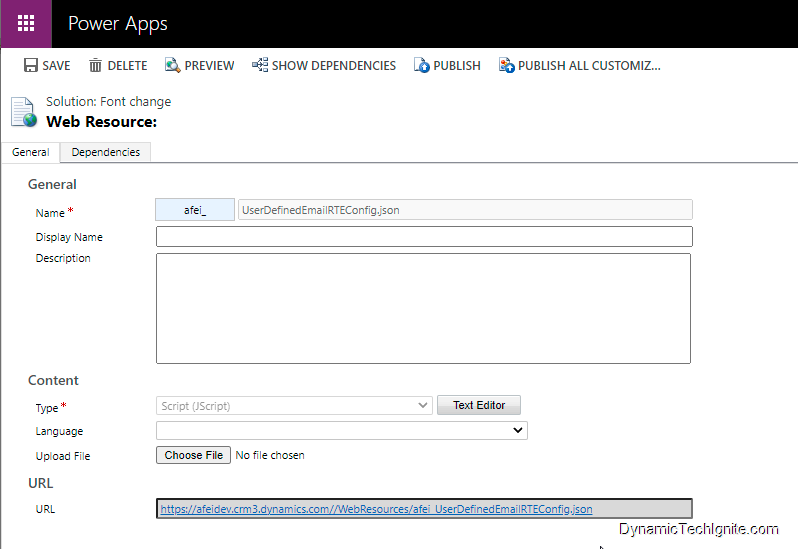
image-20211007124004663

below is code script:

{
  "defaultSupportedProps":{
 "font_defaultLabel": "Candara"
     "fontSize_defaultLabel":"12",
     "stickyStyle":{
        "font-size":"12pt",
        "font-family": "Candara,Optima,sans-serif"
    }
  }
}

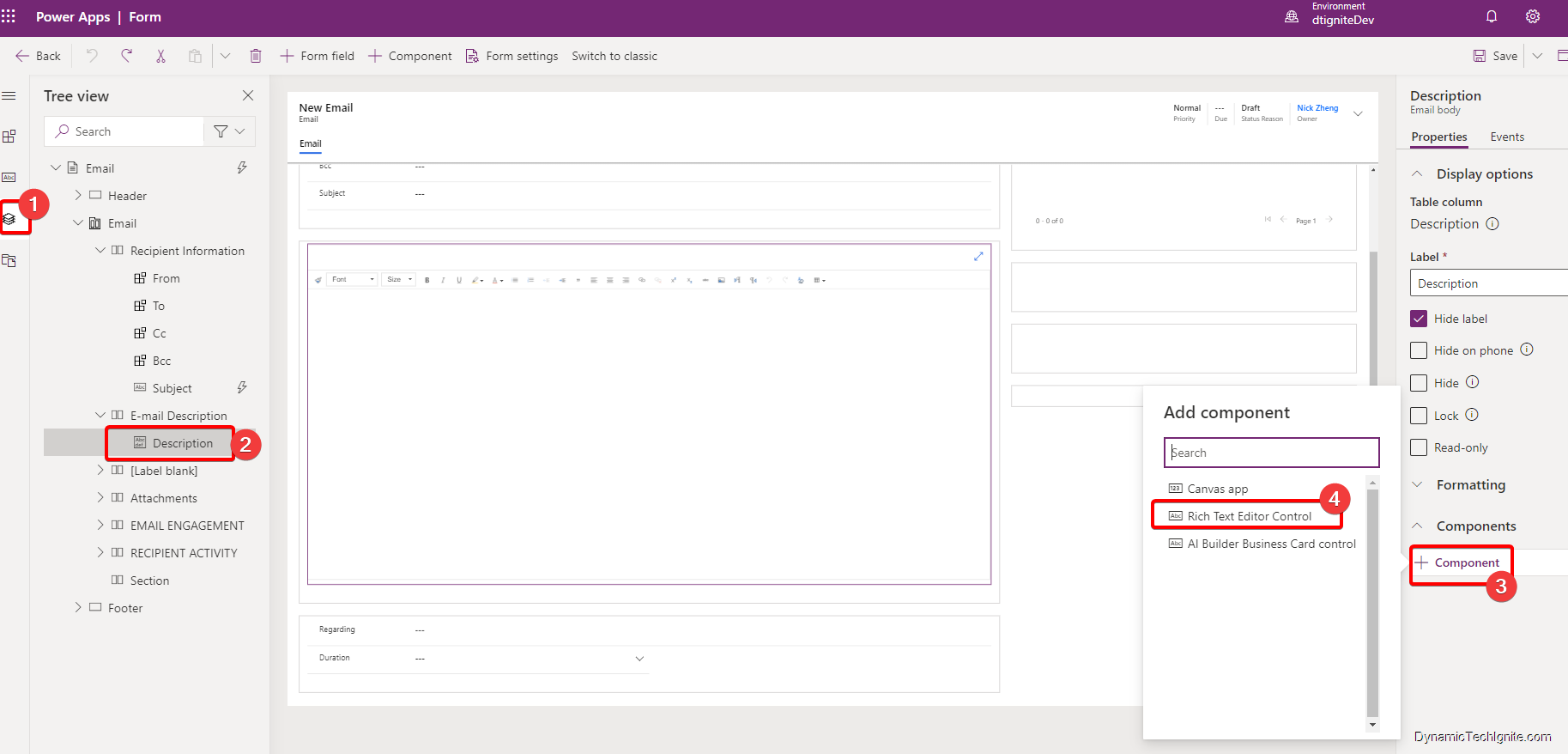
Add the newly created web resource to the Email form through the Rich Text Editor Control

below are the steps:
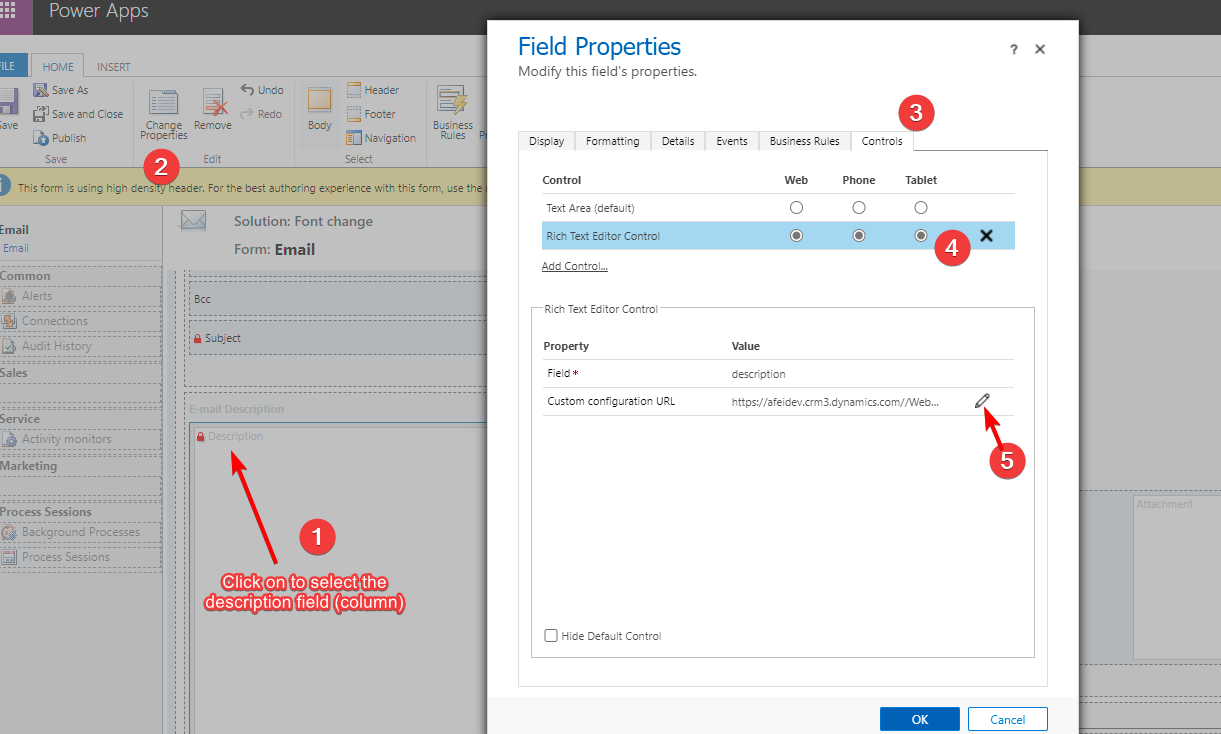
image-20211007102919187

then, find the control and click on Add,
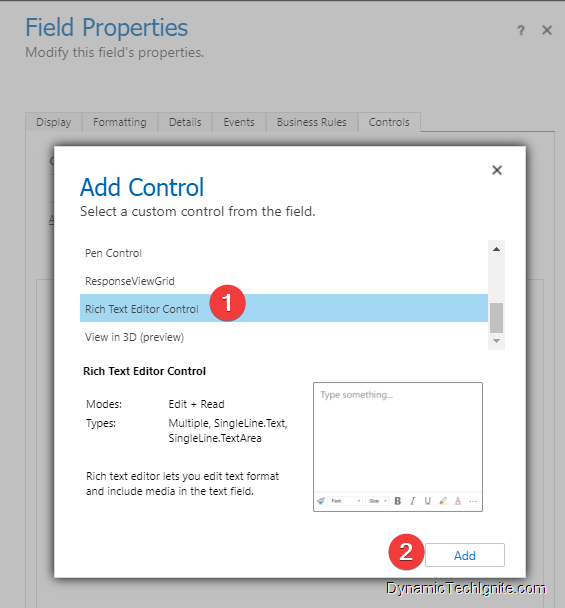
image-20211007110635280

Next, click the Pencil button to open Custom configuration URL property (make sure that you also select Web, Phone, and Tablet if you want all client apps to have the ability to use rich text in the column),
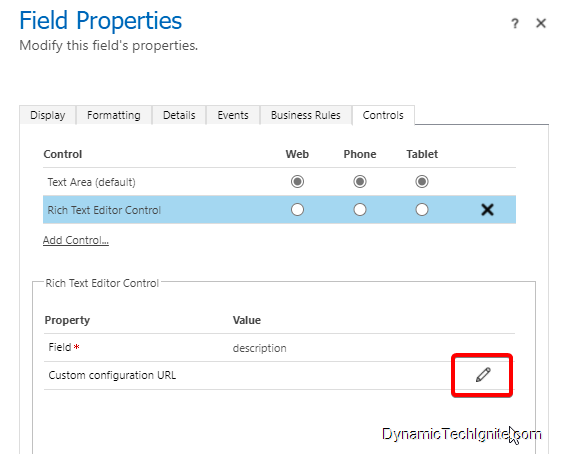
image-20211007110838725

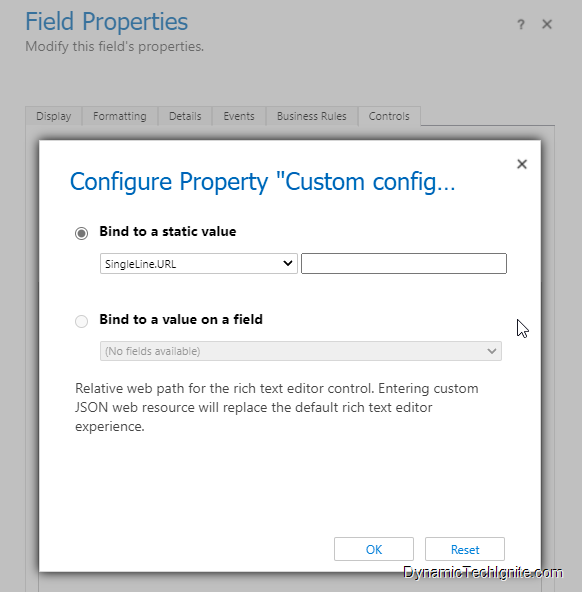
then, on the Custom configuration URL property page, Select Bind to static value, enter the relative URL to the JavaScript web resource in the box next to SingleLine.URL, and then select OK. The relative URL is located on the web resource definition.

Note:

For example, if you create an HTML page as a web resource named “new_myWebResource.htm”, you could open that page in a browser using a URL like this:

<base URL>/WebResources/new_myWebResource.htm

but when you add it to the Rich text editor control, please make sure you only use the relative URL like this:

/WebResources/new_myWebResource.htm

image-20211007192425815

image-20211007110755848

Select OK to close the Column Properties page.

On the form editor command bar, select Publish.

Note:

the Rich text editor control component can only be added to the main form at the moment. you can't add them to Card form or quick view form etc.

email for interactive experience has to be configured through the legacy interface.

You can also refer to below link for the training material from Microsoft
https://docs.microsoft.com/en-us/dynamics365/customer-service/customer-service-hub-user-guide-email-font-admin

Wednesday, October 6, 2021

How to change the default properties of the Rich Text Editor Control


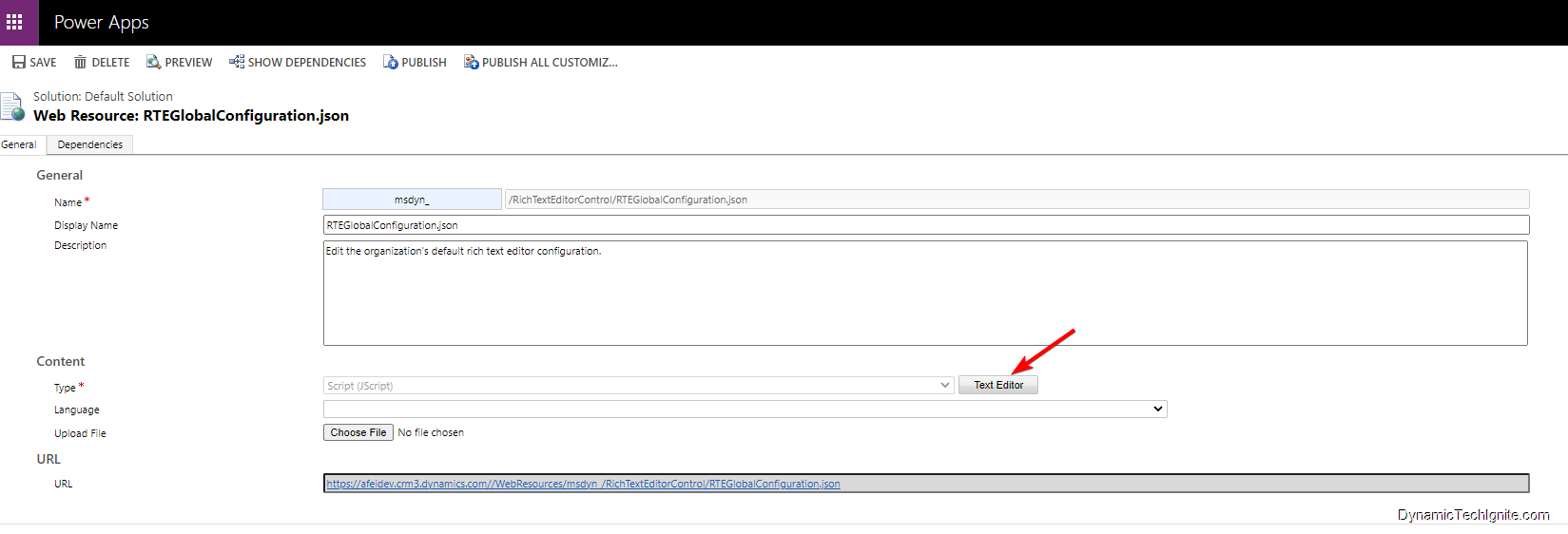
The default RTE webresource is available with the display name "RTEGlobalConfiguration.json".

This configuration is used for all instances of the RTE control, and can be used to make organization wide changes. This includes RTE used in:

  • timeline rich-text notes,
  • knowledge management,
  • single and multi-line fields that are configured to use the RTE control

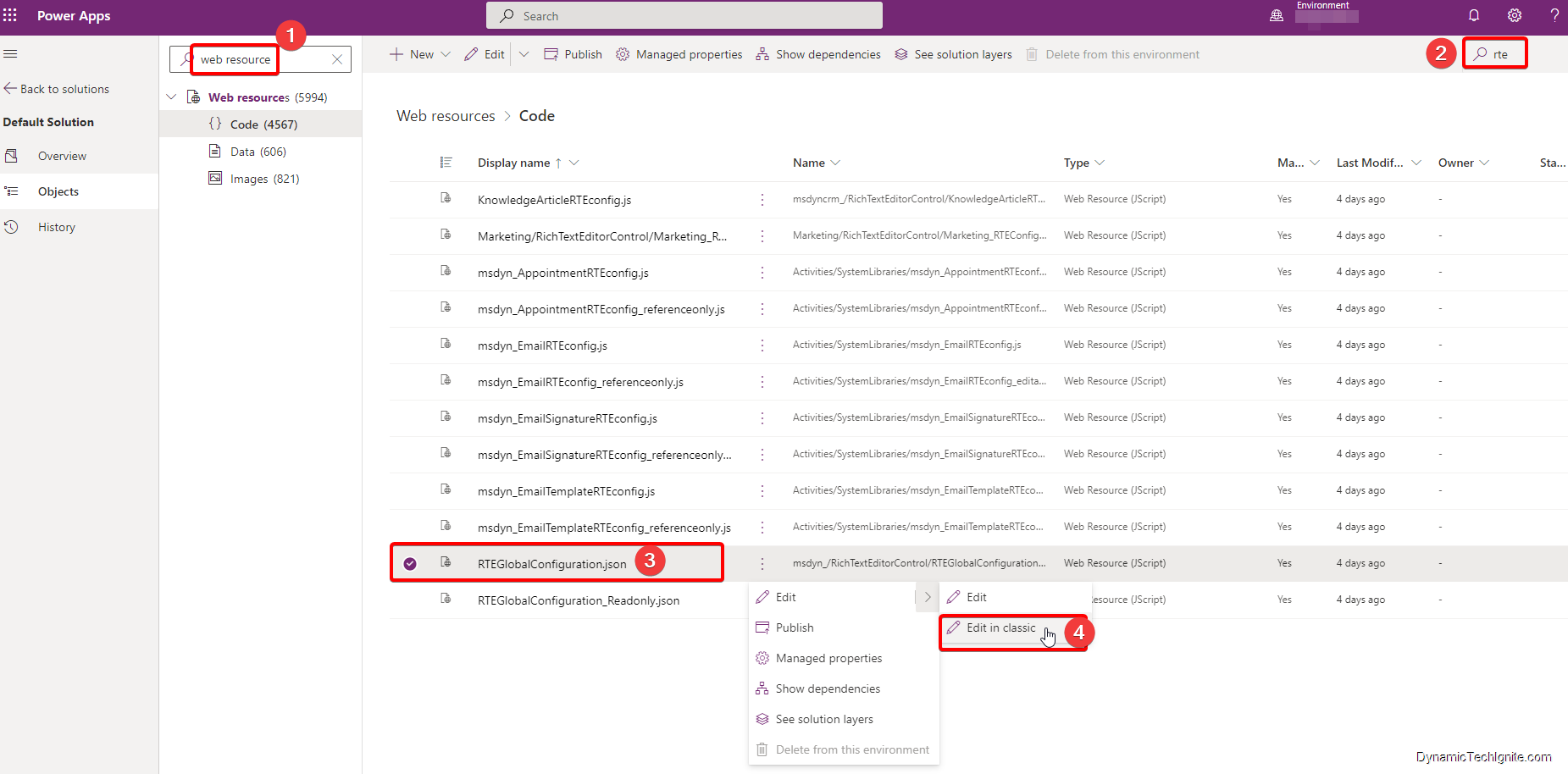
Follow below steps to find out of the box web resource "RTEGlobalConfiguration.json",

Sign in to Power Apps. Go to Solutions, open the default solution,

  1. Search by web resource
  2. A list of web resources will show up, where you can search by RTE again from the search box at the top right corner
  3. Find web resource "RTEGlobalConfiguration.json"
  4. click the three dots next to it, then click on the small arrow, click "Edit in classic"

image-20211006215208288

  1. below different window will pop up

image-20211006215228841

  1. After click on Text Editor button, you will see below script, where you can update the properties for Rich Text Editor Control
{  "defaultSupportedProps": {        "autoGrow_onStartup": true,        "basicEntities": true,        "browserContextMenuOnCtrl": true,        "copyFormatting_allowRules": true,        "customConfig": "",        "dialog_backgroundCoverColor": "black",        "disableNativeSpellChecker": false,        "enterMode": 3,        "extraPlugins": "accessibilityhelp,autogrow,autolink,basicstyles,bidi,blockquote,button,collapser,colorbutton,colordialog,confighelper,contextmenu,copyformatting,dialog,find,floatpanel,font,indentblock,justify,panel,panelbutton,pastefromword,quicktable,selectall,stickystyles,superimage,tableresize,tableselection,tabletools",        "fillEmptyBlocks": true,        "font_defaultLabel": "Segoe UI",        "font_names": "Angsana New/'Angsana New', 'Leelawadee UI', Sathu, serif;Arial/Arial, Helvetica, sans-serif;Arial Black/'Arial Black', Arial, sans-serif;Calibri Light/'Calibri Light', 'Helvetica Light', sans-serif;Calibri/Calibri, Helvetica, sans-serif;Cambria/Cambria, Georgia, serif;Candara/Candara, Optima, sans-serif;Century Gothic/'Century Gothic', sans-serif;Comic Sans MS/'Comic Sans MS';Consolas/Consolas, Courier, monospace;Constantia/Constantia, 'Hoefler Text', serif;Corbel/Corbel, Skia, sans-serif;Cordia New/'Cordia New', 'Leelawadee UI', Silom, sans-serif;Courier New/'Courier New';DaunPenh/DaunPenh, 'Leelawadee UI', 'Khmer MN', sans-serif;Franklin Gothic Book/'Franklin Gothic Book', 'Avenir Next Condensed', sans-serif;Franklin Gothic Demi/'Franklin Gothic Demi', 'Avenir Next Condensed Demi Bold', sans-serif;Franklin Gothic Medium/'Franklin Gothic Medium', 'Avenir Next Condensed Medium', sans-serif;Garamond/Garamond, Georgia, serif;Gautami/Gautami, 'Nirmala UI', 'Telugu MN', sans-serif;Georgia/Georgia, serif;Impact/Impact, Charcoal, sans-serif;Iskoola Pota/'Iskoola Pota', 'Nirmala UI', 'Sinhala MN', sans-serif;Kalinga/Kalinga, 'Nirmala UI', 'Oriya MN', sans-serif;Kartika/Kartika, 'Nirmala UI', 'Malayalam MN', sans-serif;Latha/Latha, 'Nirmala UI', 'Tamil MN', sans-serif;Leelawadee UI/'Leelawadee UI', Thonburi, sans-serif;Lucida Console/'Lucida Console', Monaco, monospace;Lucida Handwriting/'Lucida Handwriting', 'Apple Chancery', cursive;Lucida Sans Unicode/'Lucida Sans Unicode';Mangal/Mangal, 'Nirmala UI', 'Devanagari Sangam MN', sans-serif;Nirmala UI/'Nirmala UI', sans-serif;Nyala/Nyala, Kefa, sans-serif;Palatino Linotype/'Palatino Linotype', 'Book Antiqua', Palatino, serif;Raavi/Raavi, 'Nirmala UI', 'Gurmukhi MN', sans-serif;Segoe UI/'Segoe UI', 'Helvetica Neue', sans-serif;Shruti/Shruti, 'Nirmala UI', 'Gujarati Sangam MN', sans-serif;Sitka Heading/'Sitka Heading', Cochin, serif;Sitka Text/'Sitka Text', Cochin, serif;Sylfaen/Sylfaen, Mshtakan, Menlo, serif;TW Cen MT/'TW Cen MT', 'Century Gothic', sans-serif;Tahoma/Tahoma, Geneva, sans-serif;Times New Roman/'Times New Roman', Times, serif;Times/Times, 'Times New Roman', serif;Trebuchet MS/'Trebuchet MS';Tunga/Tunga, 'Nirmala UI', 'Kannada MN', sans-serif;Verdana/Verdana, Geneva, sans-serif;Vrinda/Vrinda, 'Nirmala UI', 'Bangla MN', sans-serif;メイリオ/Meiryo, メイリオ, 'Hiragino Sans', sans-serif;仿宋/FangSong, 仿宋, STFangsong, serif;微軟正黑體/'Microsoft JhengHei', 微軟正黑體, 'Apple LiGothic', sans-serif;微软雅黑/'Microsoft YaHei', 微软雅黑, STHeiti, sans-serif;新宋体/NSimSun, 新宋体, SimSun, 宋体, SimSun-ExtB, 宋体-ExtB, STSong, serif;新細明體/PMingLiU, 新細明體, PMingLiU-ExtB, 新細明體-ExtB, 'Apple LiSung', serif;楷体/KaiTi, 楷体, STKaiti, serif;標楷體/DFKai-SB, 標楷體, BiauKai, serif;游ゴシック/'Yu Gothic', 游ゴシック, YuGothic, sans-serif;游明朝/'Yu Mincho', 游明朝, YuMincho, serif;隶书/SimLi, 隶书, 'Baoli SC', serif;黑体/SimHei, 黑体, STHeiti, sans-serif;굴림/Gulim, 굴림, 'Nanum Gothic', sans-serif;궁서/Gungsuh, 궁서, GungSeo, serif;돋움/Dotum, 돋움, AppleGothic, sans-serif;맑은 고딕/'Malgun Gothic', '맑은 고딕', AppleGothic, sans-serif;바탕/Batang, 바탕, AppleMyungjo, serif;바탕체/BatangChe, 바탕체, AppleMyungjo, serif;MS Pゴシック/'MS PGothic', 'MS Pゴシック', 'MS Gothic', 'MS ゴシック', 'Hiragino Kaku Gothic ProN', sans-serif;MS P明朝/'MS PMincho', 'MS P明朝', 'MS Mincho', 'MS 明朝', 'Hiragino Mincho ProN', serif",        "fontSize_defaultLabel": "9",        "fontSize_sizes": "8/8pt;9/9pt;10/10pt;11/11pt;12/12pt;14/14pt;16/16pt;18/18pt;20/20pt;22/22pt;24/24pt;26/26pt;28/28pt;36/36pt;48/48pt;72/72pt;",        "height": 185,        "keystrokes": [],        "qtCellBorderColor": "rgb(171, 171, 171)",        "qtCellBorderStyle": "solid",        "qtCellBorderWidth": "1px",        "qtCellPadding": "1",        "qtCellSpacing": "0",        "qtCellWith": "120px",        "qtColumns": 8,        "qtRows": 6,        "qtStyle": {            "border-collapse": "collapse",            "font-size": "9pt"        },        "removeDialogTabs": "flash:Upload;link:upload",        "removePlugins": "a11yhelp,codemirror,liststyle,magicline,scayt,showborders",        "skin": "superowa",        "stickyStyle": {            "font-size": "9pt",            "font-family": "'Segoe UI','Helvetica Neue',sans-serif"        },        "stickyStyles_defaultTag": "div",        "superimageImageMaxSize": 5,        "toolbarcollapser_enableResizer": true,        "toolbarLocation": "bottom",        "uploadRecordId": []    },    "disableContentSanitization": false,    "disableDefaultImageProcessing": false,    "disableImages": false,    "imageEntity": {        "imageEntityName": "msdyn_richtextfiles",        "imageFileAttributeName": "msdyn_imageblob"    },    "showAsTabControl": false,    "showFullScreenExpander": false,    "showHtml": false,    "showPreview": false,    "showPreviewHeaderWarning": false}}

Note

if you would like to only use this web resource to update certain forms rather than making organization wide changes, then I suggest you to copy the script and make a new web resource, after than, you can refer to below configuration steps in the new Power Apps interface to fulfill the requirement.

for instance, I’d like to add this web resource only to one of the email form, then I just follow below step to add the control to the form component.

image-20211006221933849

below is the case study for How to change Default Font style and size for email form in Rich text editor control in Dynamics CRM
https://www.dynamictechignite.com/tip-how-to-change-default-font-style-and-size-for-email-form-in-rich-text-editor-control-in-dynamics-crm/

Tip - Check current setting for a rich text editor config using browser directly


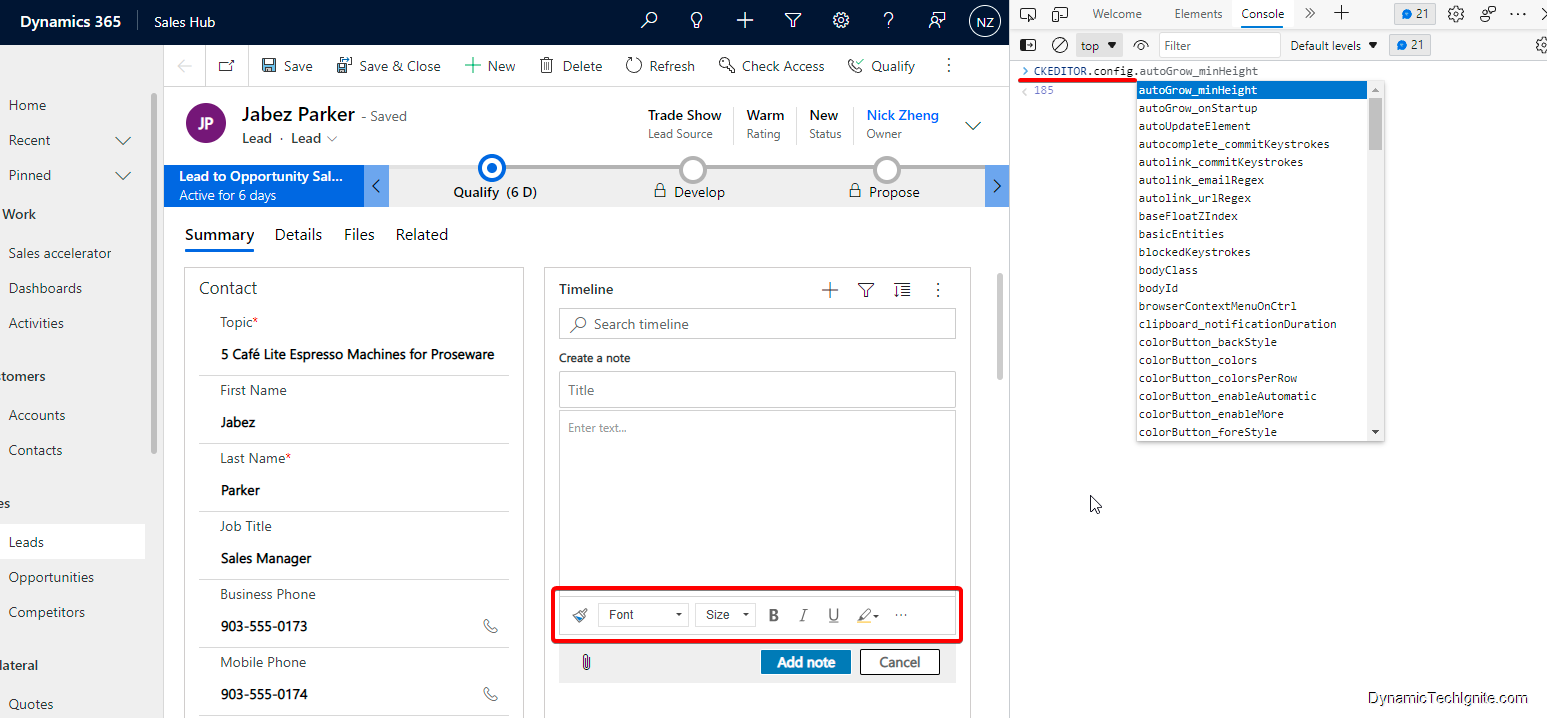
  1. In a Microsoft Edge or Google Chrome web browser, run your model-driven app and open a form that has the rich text editor control, such as an account row.
  2. Press F12 on your keyboard to open the Developer Tools from the browser
  3. Select the Console tab, and then select the parent Main.aspx page in the drop-down list box on the command bar, or you can clear console first, then input
> CKEDITOR.config.

then a list of properties will show up after the dot, where you can select the property you’re look for to find out the current setting for the rich text editor configuration.

image-20211006193902924